 Skip to content
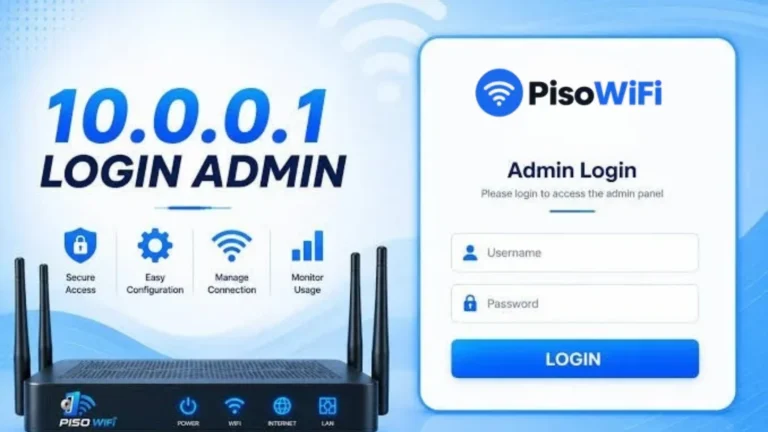
What's the difference between Piso WiFi login and admin login?
Customers log in to Piso WiFi only to pay for internet time with a coin or voucher code, while the owner signs in at 10.0.0.1/admin to run the vendo. That’s why a regular customer usually never needs a username or password. A customer’s Piso WiFi log in is just a payment step, and the admin login is the owner’s control room.
The customer portal is a captive portal, which is a page the network shows a phone before it lets that phone online. The admin dashboard is a separate, password-protected page on the same machine.
| Customer portal | Admin dashboard | |
|---|---|---|
| Who uses it | Anyone buying internet time | The vendo owner or an authorized manager |
| Address | http://10.0.0.1 | http://10.0.0.1/admin |
| What it asks for | A coin or a voucher code | An admin username and password |
| What you can do | Start, pause or check your remaining time | Set rates, make vouchers, watch sales, block devices, change the WiFi name |
Note: If a page asks a customer for a username and password, they’ve landed on the admin page by mistake. Customers should go back to plain 10.0.0.1 and insert a coin.
How do you log in to the Piso WiFi admin panel at 10.0.0.1/admin?
You access the Piso WiFi admin panel by connecting to the vendo’s network and opening 10.0.0.1/admin in any browser. You can find the Piso WiFi admin login page on the vendo itself, not on a website, so Google can’t take you there. Here’s how to access Piso WiFi admin pages on AdoPiSoft, PisoFi and LPB vendos.
- Connect to the vendo’s WiFi before opening 10.0.0.1/admin. Use the same network your customers join. On a laptop, you can also plug into the vendo’s LAN port with an Ethernet cable.
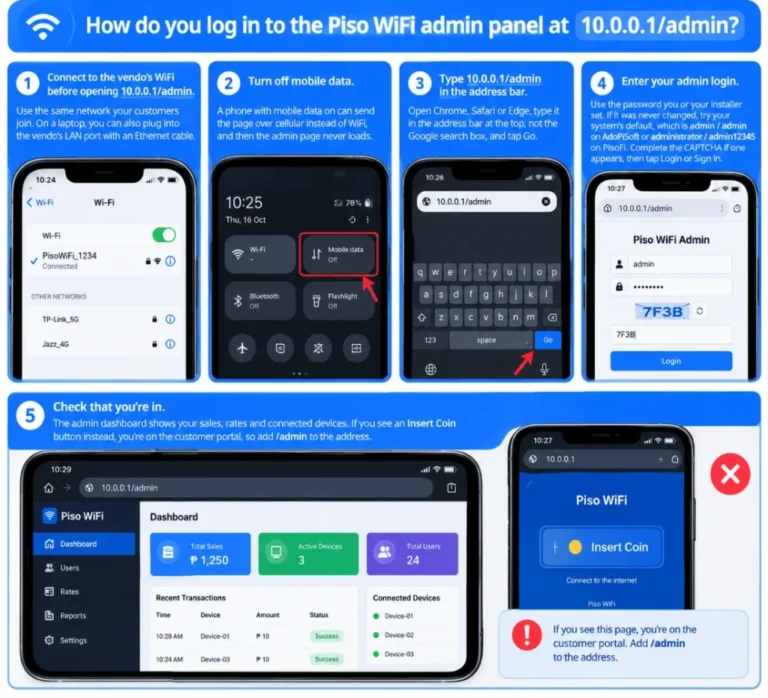
- Turn off mobile data. A phone with mobile data on can send the page over cellular instead of WiFi, and then the admin page never loads.
- Type 10.0.0.1/admin in the address bar. Open Chrome, Safari or Edge, type it in the address bar at the top, not the Google search box, and tap Go.
- Enter your admin login. Use the password you or your installer set. If it was never changed, try your system’s default, which is admin / admin on AdoPiSoft or administrator / admin12345 on PisoFi. Complete the CAPTCHA if one appears, then tap Login or Sign In.
- Check that you’re in. The admin dashboard shows your sales, rates and connected devices. If you see an Insert Coin button instead, you’re on the customer portal, so add /admin to the address.
Tip: You must be on the vendo’s WiFi or LAN first. 10.0.0.1 is a private IP address from the 10.0.0.0/8 range set aside for local networks. That’s why mobile data or another WiFi can’t reach it.
What is the default 10.0.0.1 admin password?
On AdoPiSoft, the default 10.0.0.1 admin password is admin, and the username is admin too. The default depends on the platform, so PisoFi, LPB and MikroTik vendos each use a different pair.
| Vendo system | Default username | Default password | How sure is this? |
|---|---|---|---|
| AdoPiSoft | admin | admin | Official, from AdoPiSoft’s activation guide |
| PisoFi | administrator | admin12345 | Official, from PisoFi’s build guide |
| LPB Piso WiFi | admin | 123456789 | Widely reported by owners, but LPB doesn’t publish it |
| JuanFi / MikroTik | admin | Blank on older routers | Newer MikroTik routers print the password on the sticker |
Some websites list administrator / admin1234 for AdoPiSoft. AdoPiSoft’s own guide says admin / admin, so try that first.
To find the Piso WiFi admin username and password for your own unit, check these in order:
- The router label. Many vendos and routers print the login on a sticker on the back or bottom.
- The supplier’s setup sheet. The supplier who sold or installed the vendo often sets a custom password and writes it down for you.
- The platform default. Try the piso wifi default password from the table above for your system.
Warning: Default logins are published all over the internet. Change yours right after your first login, so a customer can’t open your dashboard and change your rates.
What should you do right after your first admin login?
Right after your first admin login, change four things before you let customers connect. Doing them on day one protects your income before anyone else can touch the settings.
- Change the admin password. Replace the default with a password only you know.
- Rename the WiFi. Give your SSID, the network name customers see, a name they’ll recognize.
- Set your timer rates. Decide how much time each coin buys.
- Back up your settings. Save a backup once everything is set, so a reset doesn’t wipe your setup.
Why can’t you log in to your Piso WiFi admin panel?
Your Piso WiFi admin login fails for one of three reasons, which are the wrong network, the wrong address or the wrong password. Problems on the customer side, like the coin portal not loading, are covered in our 10.0.0.1 Piso WiFi portal guide.
| Problem | Likely cause | Fix |
|---|---|---|
| Page won’t load at all | You’re on mobile data, a VPN or another WiFi | Join the vendo’s WiFi, then turn off mobile data and VPN |
| Google results appear instead | The address went into the search bar | Type 10.0.0.1/admin into the address bar |
| The coin page opens instead | You typed plain 10.0.0.1 | Add /admin to the end of the address |
| “Not secure” warning | The browser forced HTTPS, and 10.0.0.1 has no SSL certificate | Open http://10.0.0.1/admin with plain HTTP |
| Login page rejects you | The default was changed, or it’s the wrong platform’s default | Try your system’s default, then ask the supplier for the current password |
| Login locked for a while | Too many failed login attempts | Wait a few minutes, then type carefully |
| Panel slow or keeps dropping | Overheating, power fluctuation or old firmware | Give the vendo airflow, plug it into a surge protector or UPS, and update the firmware |
Key takeaway: Fix the network first, the address second and the password last. Network checks are the quickest to rule out.
Why won't the 10.0.0.1 login page open?
The 10.0.0.1 login page won’t open when your phone isn’t on the vendo’s network, the address goes in the wrong place, or the vendo itself is down. If you typed 10.0.0.1/login, switch to 10.0.0.1/admin, which is the admin path AdoPiSoft, PisoFi and LPB use.
- Wrong path. If plain 10.0.0.1 opens the coin portal but /admin shows an error, your vendo may run on MikroTik or JuanFi, where the settings live on the router’s own address.
- Search bar instead of address bar. Typing the address into the search bar sends it to Google, which shows web results instead of your vendo.
- The page keeps loading. A weak signal or a vendo that’s still restarting can stall the page. Move closer and wait two minutes.
- Old browser cache. Your browser cache can hold a broken copy of the page. Open an incognito mode tab and try again.
- The vendo is off. Check that the vendo and its router have power and their lights are on.
To narrow it down fast, try the same address on a second phone. If it opens there, the problem is your first phone’s settings, not the vendo.
What if you typed 10.0.0.0.1/admin or 10.0.01/admin?
10.0.0.0.1/admin never works because it has five numbers, while 10.0.01/admin often still opens because modern browsers fill in the missing zero. A valid IP address format has four numbers separated by three dots, so anything with five numbers turns into a Google search.
| What was typed | What happens | Type this instead |
|---|---|---|
| 10.0.0.0.1/admin | Five numbers, so the browser runs a search instead | 10.0.0.1/admin |
| 1.0.0.0.1/admin | Five numbers, so it fails the same way | 10.0.0.1/admin |
| 10.0.01/admin | Browsers like Chrome read it as 10.0.0.1, so it often still opens | 10.0.0.1/admin |
| 10.0.1/admin | Browsers also fill this in as 10.0.0.1, so it often still opens | 10.0.0.1/admin |
| 100.0.0.1/admin | A valid but different address, so it never reaches your vendo | 10.0.0.1/admin |
10.10.0.1 is not a typo, because some vendos really use it as their address. Once 10.0.0.1/admin opens, bookmark it so you never have to type it again.
How do you log in if your vendo uses 10.5.50.1 or another address?
If your vendo uses 10.5.50.1 or another address, type that address in your browser instead of 10.0.0.1. A 10.5.50.1 log in page usually means a MikroTik hotspot, such as a JuanFi setup, because 10.5.50.1 is the default gateway MikroTik’s hotspot setup suggests. On those vendos, the settings aren’t at /admin. They live in the MikroTik router, at the address printed on the router label.
| Address | What it usually is |
|---|---|
| 10.0.0.1/admin | The admin page on AdoPiSoft, PisoFi and LPB |
| 10.5.50.1 | A MikroTik hotspot page, including JuanFi |
| 192.168.88.1 | MikroTik router settings |
| 10.10.0.1 | Some vendos use it in place of 10.0.0.1, so try 10.10.0.1/admin |
Why does the 10.0.0.1 admin login reject your password?
The 10.0.0.1 admin login rejects your password when what you type doesn’t match what the machine has saved. That usually comes down to one of these five things.
- Caps lock is on. Passwords are case-sensitive, so “Admin” and “admin” are different.
- Autofill typed an old password. Your browser’s autofill may enter a password you saved months ago. Clear the field and type it by hand.
- It’s the wrong platform’s default. LPB and AdoPiSoft defaults are different, so check which system you run.
- Too many failed login attempts. Some systems add a temporary lockout after repeated misses. Wait, then try once, carefully.
What if you forgot your admin password?
If you forgot your admin password, ask the supplier or installer for it before you reset anything, because they often set it during setup and keep a record. For a second-hand vendo, ask the previous owner too. On AdoPiSoft, also have the seller transfer both the machine and the license to your account, since AdoPiSoft treats them as two separate things.
A factory reset brings back the default password, but it also wipes your rates, vouchers and WiFi name. Piso WiFi password recovery through the supplier takes one phone call, while a reset means rebuilding your whole setup. Reset only when nobody can give you the current password.
How do you change or reset the admin password?
You change the Piso WiFi admin password from your account page inside the admin dashboard, and on AdoPiSoft that page is My Profile. Reset it whenever any of these apply:
- It’s still the default. Anyone who reads a guide like this one can log in.
- Someone else knew it. A staff member or the installer had the password.
- Something looks wrong. You notice failed logins or rates you didn’t set.
- You bought the vendo second-hand. The previous owner still has the old login.
To change it on AdoPiSoft, follow these steps:
- Log in. Open 10.0.0.1/admin and sign in.
- Open your profile. Go to My Profile in the admin menu.
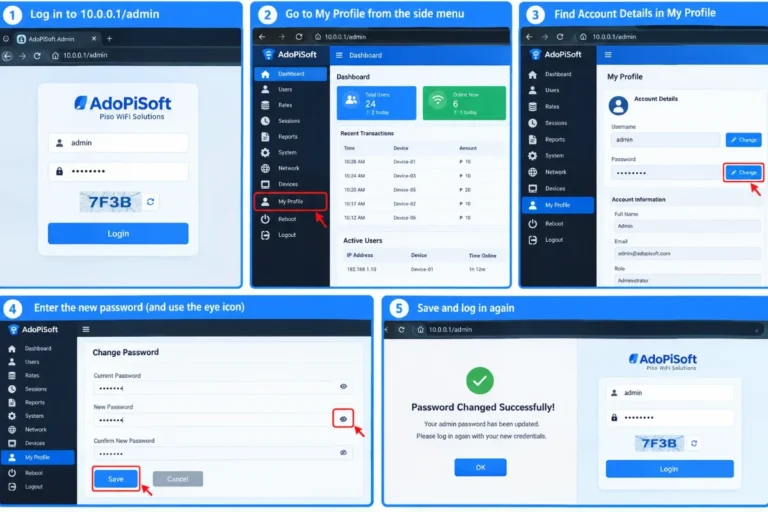
- Find Account Details. AdoPiSoft lets you change both the username and the password here.
- Type the new password. Enter it in the New Password field. Tap the eye icon to check what you typed.
- Save. Save the change, then log out and sign back in with the new details.
Other systems keep the same setting on their own account or admin page, so look for the password field there. Write the new login down and keep it somewhere safe, away from the vendo.
What's the difference between a soft reboot and a factory reset?
A soft reboot restarts the vendo and keeps every setting, while a factory reset returns it to the defaults and erases your setup. Back up your settings first, which AdoPiSoft lets you do on its Backup/Restore page.
| Soft reboot | Factory reset | |
|---|---|---|
| Password, rates, vouchers, WiFi name | Kept | Wiped back to defaults |
| When to use it | Slow or frozen dashboard | Forgotten password with no other way in |
If you’re wondering how to reset Piso WiFi without logging in, hold the recessed reset button with a paperclip for about 10 seconds until the lights blink. Then log in with your system’s default and set it up again.
How do you keep your admin login secure?
You keep your admin login secure by using a strong password only you know and checking the dashboard for anything odd.
- Strong password. Use at least 10 characters with letters and numbers, and never reuse the default.
- Never share it. Give staff or customers no access to the admin login, even for a quick change.
- Log out after use. Logging out stops the next person who borrows your phone from walking into the dashboard.
- Watch for failed login attempts. Repeated misses in your logs mean someone is guessing.
- Keep firmware updated. A firmware update often fixes security holes in the dashboard.
- Turn off remote administration you don’t use. Fewer ways in means fewer ways to break in.
What can you see on the 10.0.0.1 admin dashboard?
The 10.0.0.1 admin dashboard shows your sales, active sessions, connected devices and system status on one screen. These are the common features of the Piso WiFi admin panel, and they appear right after your 10.0.0.1 dashboard login. On AdoPiSoft, each one also has its own page, such as Sales Inventory and Wifi Devices.
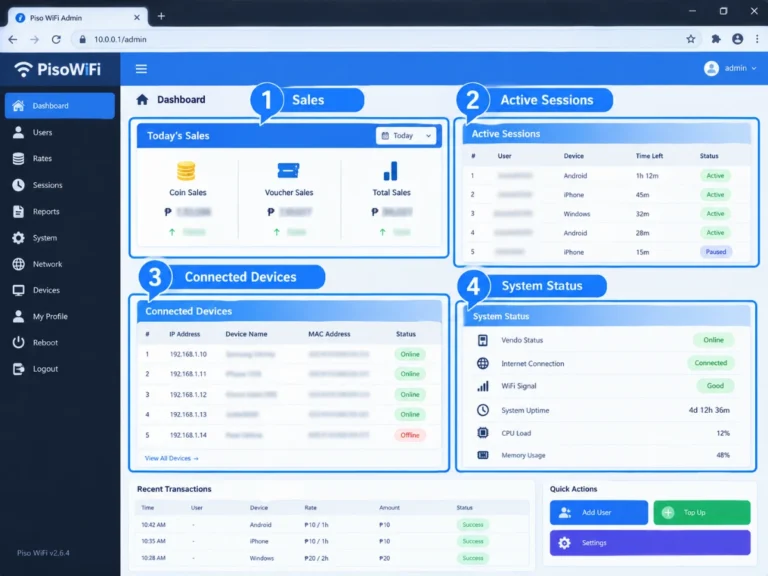
- Sales shows your coin and voucher income for the day and over time.
- Active sessions shows who’s paying for time right now and how much each person has left.
- Connected devices lists every phone and laptop on your WiFi, paid or not.
- System status tells you whether the vendo and its internet line are working.
How do you see and block connected users?
You see connected users in the dashboard’s connected devices list and block one by adding its MAC address to a blocklist. A MAC address is the unique hardware ID of each phone or laptop.
- Open the connected devices list. On AdoPiSoft, this is the WiFi users list.
- Find the device. Look for it by name, or spot the one using the most data.
- Block it. Tap its block button, or copy its MAC address into MAC filtering and save.
A blocked device can’t connect until you unblock it. Phones that switch on a new private WiFi address can get around a block, so watch for the same name coming back. You can also set a device limit, which caps how many phones one paid session can connect.
How do you manage customer sessions?
You manage customer sessions from the sessions page, which shows each one’s remaining time and whether it’s active or expired. An active session still has paid time left, and an expired session has run out.
When a customer says their time vanished, check their session first to see whether it expired or is still running. On AdoPiSoft, you can also edit a single session, including its download and upload speed and whether pause/resume is allowed.
Where can you see sales reports and activity logs?
You see sales reports and activity logs in the reports section of the admin dashboard. AdoPiSoft calls these Sales Inventory and System Logs.
- Sales report. Shows your coin and voucher income by day, so you can spot slow days.
- Activity log. Records logins and system events, including failed login attempts.
Checking both once a day is how to monitor Piso WiFi without standing beside the machine.
What can you change in the Piso WiFi admin settings?
You can change your WiFi name, timer rates, speed limits, vouchers, portal design and system options from the admin dashboard. To change Piso WiFi settings, log in at 10.0.0.1/admin and open the menu for that setting, such as Portal Settings for what customers see or System for the machine itself.
How do you change the Piso WiFi name?
You change the Piso WiFi name by editing the SSID in the wireless settings of the admin dashboard. The SSID is the network name customers see in their WiFi list.
- Open wireless settings. On AdoPiSoft, this is the WiFi setup screen.
- Type the new WiFi name. Leave the network open so phones can still reach the coin portal.
- Save/Apply. Connected phones drop off and must join the new name, so do it during a quiet hour.
How do you set your timer rates?
You set your timer rates in the rates section of the admin dashboard, where each coin denomination gets a set amount of time. On AdoPiSoft, go to Quick Start, then Wifi Rates.
- Choose the rate type. Pick time rates, data rates, or time with a data cap.
- Pick the currency. Select Philippine Peso (₱).
- Edit each coin. Tap Edit to change how much time ₱1, ₱5 and ₱10 buy.
- Add a package. Use Add New Rate to create a bigger package, like ₱20.
How do you limit bandwidth and speed?
You limit bandwidth and speed by setting a download/upload limit for each session in the admin dashboard. On AdoPiSoft, new sessions take their default speed from the captive portal bandwidth settings, and you can still change one session’s limit on its own.
A piso wifi speed limit stops one customer’s big download from slowing everyone else. If your router supports QoS, short for Quality of Service, you can also give light traffic like messaging priority.
How do you manage vouchers?
You manage vouchers from the vouchers page of the admin dashboard, where you create, print and track each voucher code. A voucher code gives a customer time without coins.
- Create codes. Make codes that each give a set amount of time.
- Set voucher validity. Choose how long a code works before it expires.
- Offer a subscription voucher. AdoPiSoft supports subscription-type sessions by voucher, which suits a household that wants weekly or monthly access.
How do you change the portal’s logo and design?
You change the portal’s logo and design in the theme or Portal Settings area of the admin dashboard, which controls what customers see when they connect. On AdoPiSoft, these options sit under Theme and Captive Portal.
- Logo. Upload your store logo so customers know whose WiFi it is.
- Banner. Add a banner with your rates or a promo.
- Background and color scheme. Match them to your store’s colors.
Good piso wifi portal design is simple, with the Insert Coin button easy to tap on a small phone.
What other admin settings should you check?
Five other admin settings keep your vendo stable once the basics are done.
- DNS. Setting DNS to 8.8.8.8, Google’s public DNS, can speed up page loading if your internet provider’s DNS is slow.
- Firmware. Install piso wifi firmware and software updates when they’re released. AdoPiSoft has a Software Updates page for this.
- Frequency band. On dual-band routers, 2.4 GHz reaches farther through walls, while 5 GHz is faster up close.
- Scheduled reboot. A reboot at a quiet hour, like 3:00 AM, refreshes the network without bothering customers. AdoPiSoft has a Schedule (Cron) page for timed tasks like this.
- Coin slot. Test the coin slot after any change so coins still add time.
Pause is switched on separately for Insert Coin Mode and Voucher Code Mode on many systems, so check both after any change.
How do customers log in to Piso WiFi?
Customers log in to Piso WiFi by joining the vendo’s WiFi, opening the customer portal and paying.
- Join the WiFi. Connect to the vendo’s network and turn off mobile data.
- Open the portal. The customer portal usually opens by itself. If it doesn’t, type 10.0.0.1 in the browser.
- Pay. Tap the Insert Coin button and drop your coins, or enter a voucher code.
How do you log out of 10.0.0.1?
You log out of 10.0.0.1 by tapping the Logout or Disconnect button on the portal, if your vendo has one. Not every vendo shows a 10.0.0.1 logout button, because many systems use pause and resume instead.
If there’s no Logout/Disconnect button, turn off WiFi or forget the network in your WiFi settings. Your remaining time keeps counting down until session expiry unless you pause it first.
FAQs
Can you log in to the admin panel from your phone?
You can log in to the Piso WiFi admin panel from your phone in any browser, as long as it’s on the vendo’s WiFi.
Can you open 10.0.0.1/admin when you’re away from the vendo?
You can’t open 10.0.0.1/admin away from the vendo, because it only works on its local network. AdoPiSoft and LPB offer separate remote tools.
Can you change the 10.0.0.1 admin IP address?
You can change the 10.0.0.1 admin IP address on many systems under Network > LAN. Write the new address down first, or you’ll lock yourself out.
Is there a Piso WiFi admin app?
Some Piso WiFi systems have an admin app, like the AdoPiSoft Manager App on Google Play. Others work through any mobile browser, so skip unofficial APKs.
Should you put a password on your Piso WiFi network?
You shouldn’t put a password on your Piso WiFi network, because customers need an open network to reach the coin portal. Protect your admin password instead.
How do you contact the Piso WiFi admin?
You contact the Piso WiFi admin through the store running the vendo or the number on the machine, since there’s no central hotline.
Final Words
The 10.0.0.1 admin panel opens in seconds when you’re on the vendo’s WiFi, type the right address and know the current password. Almost every failed login comes down to one of those three things.
One problem we see again and again is a password a previous operator already changed. A call to the supplier usually fixes that faster than a reset, which wipes your rates and vouchers. The other is the five-number typo, 10.0.0.0.1, which never loads.
If you’re unsure which system your vendo runs, check the label or ask the supplier, then use that system’s default login.
Log in now, change the default password, and set your rates before your first customer connects.
